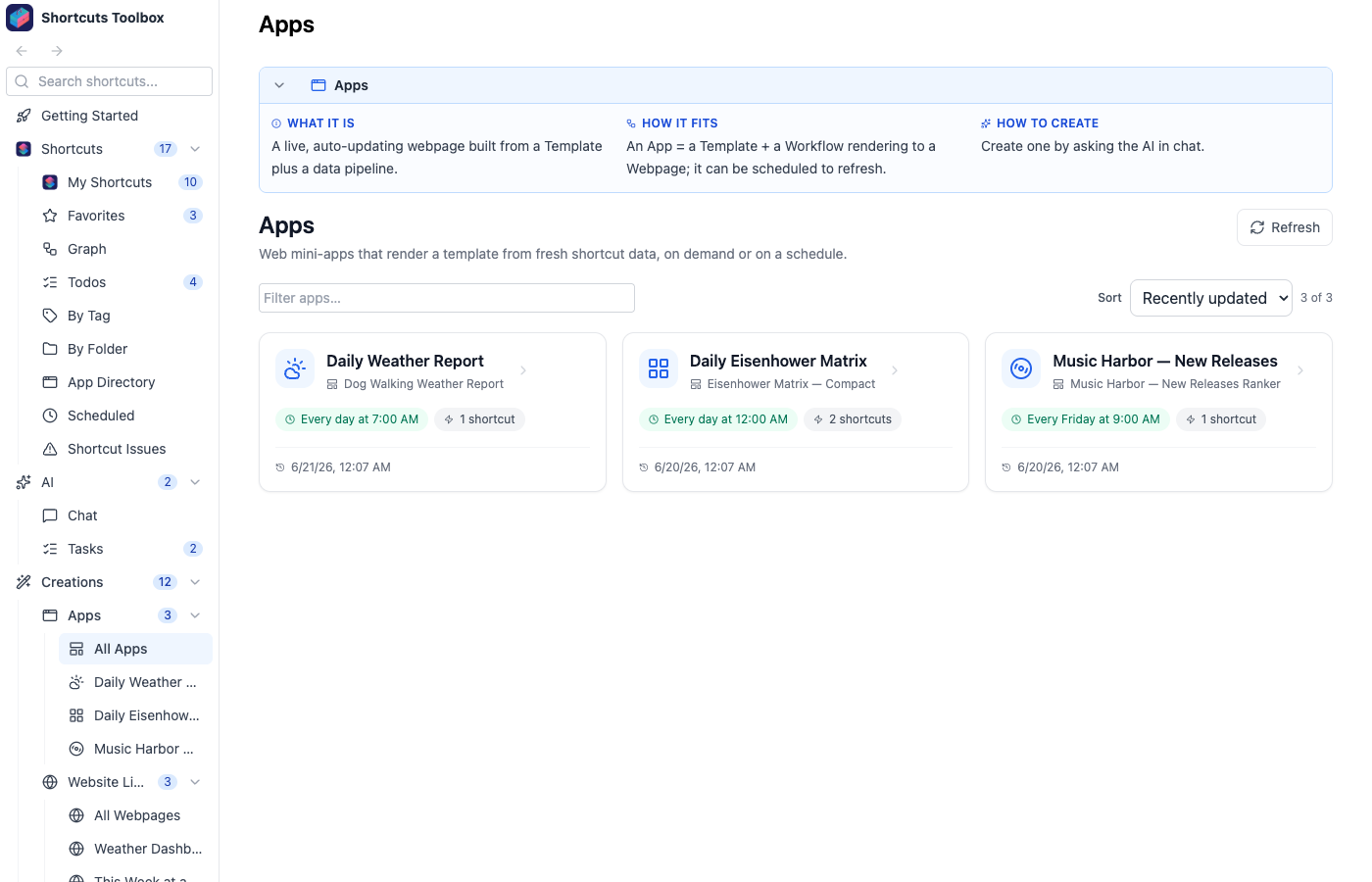
Apps turn your shortcuts into living, scheduled webpages. The AI assembles a data pipeline, pairs it with a
reusable template, and renders a clean HTML page that refreshes on its own — a daily dashboard, a
triage board, a status report — built from the shortcuts you already have.
Three pieces work together. Once you understand how they relate, the whole system clicks:
Template
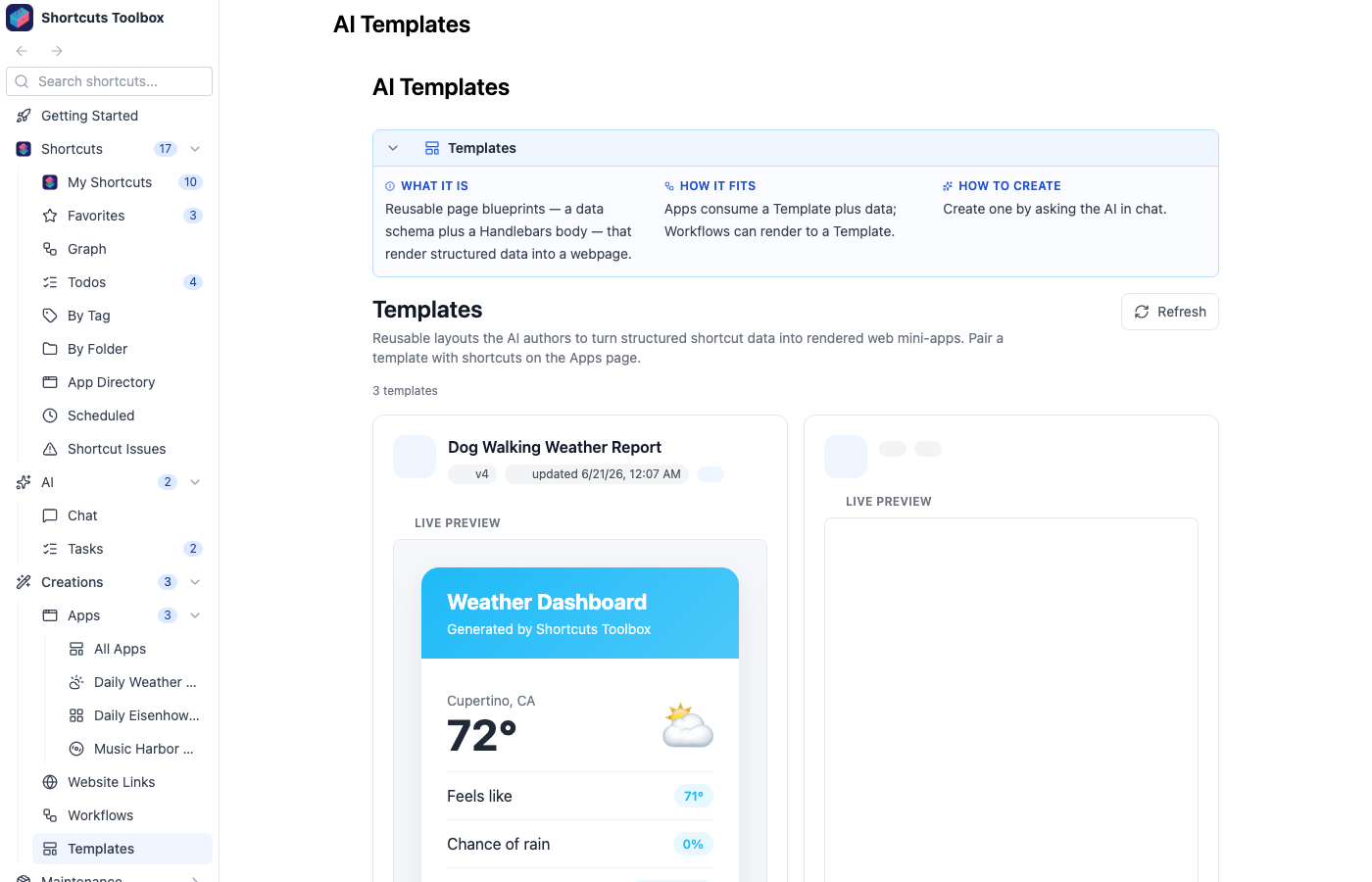
The blueprint — a Handlebars HTML body plus a JSON
data schema that defines the exact shape of the data it expects. Reusable across many
apps.
App
A template + a data pipeline + a schedule + shortcut buttons. The
app knows how to gather its data, how often to refresh, and which shortcuts you can fire right from the
page.
Webpage
The rendered output — the live HTML the app produces every
time it runs. Interactive, mobile-friendly, and always up to date.
Think of it as template → app → webpage: a template is the mould, an app fills it
with live data on a schedule, and the webpage is what you actually open and use.
What makes an app interactive
Scheduled refresh
Every app runs on the same flexible scheduler as everything else
— cron, interval, or one-time. Open the page any time and it reflects the latest run.
Shortcut buttons
Apps can embed one-tap buttons that run your shortcuts directly from the rendered page — mark a
task done, kick off a sync, snooze a reminder — without leaving the webpage.
AI-chosen icons
When the AI builds an app or webpage, it picks a fitting icon that shows up in the navigation
sidebar, so your apps are easy to recognize at a glance.
Mobile-friendly output
Rendered webpages are responsive by design — the same dashboard reads cleanly on your Mac and
on your phone.
Templates
A template is a reusable blueprint that separates how data looks from where data comes
from. It has two halves:
Handlebars body
Standard Handlebars markup — loops, conditionals, and expressions — that turns a data
object into a finished HTML page. Write it once, reuse it for any app that produces matching
data.
JSON data schema
A JSON Schema that declares the exact shape the template expects. This is the contract: the data
pipeline must produce data that fits, and AI steps are forced to honor it (see
generation-graph workflows).
Because the schema is explicit, a single template can back many different apps — the same
“priority board” or “daily summary” layout, filled by entirely different shortcuts
and pipelines.
The app-definition feedback loop
When the AI designs an app, it doesn’t just guess and hope. It validates, renders,
screenshots, and visually checks its own work — iterating until the app actually produces a
working, good-looking page.
1
Validate sample data against the schema
The AI generates representative sample data and checks it against the template’s JSON schema.
If the shapes don’t agree, it fixes the pipeline or the schema before going further.
2
Render the template
It compiles the sample data through the Handlebars body to produce a real HTML page — catching
template errors and missing fields immediately.
3
Screenshot and look
The rendered page is screenshotted and the AI visually inspects it — is the
layout right, is data missing, does it read clearly on mobile?
4
Iterate to a working app
If anything’s off, the AI adjusts the template, schema, or pipeline and runs the loop again
— converging on an app that renders cleanly with real data.
The result: apps that work on first open, because the AI already saw them working before handing them to
you.
Every app is powered by a generation-graph workflow — the DAG of
shortcut runs and AI steps that gathers and shapes its data. Want to see what apps look like in practice?
Browse the example apps.