Tags & Favorites
Folders are Apple’s organization. Tags and favorites are yours. Add your own tag chips to slice your library however makes sense to you, and star the shortcuts you reach for most so they’re always one click away.
Tags: your labels, across folders
Apple Shortcuts only lets you file a shortcut in one folder. Tags don’t care about that — a single shortcut can carry as many tags as you like, so the same shortcut can live under “work,” “daily,” and “reports” at once. Then you choose how to look at your library: by the tags you created, or by Apple’s folder structure.
Tag chips
Apply any number of tags to a shortcut. Chips are color-coded and visible at a glance throughout the library.
Filter by tag
A tag-filter row lets you scope the library to one or more tags instantly — no saved view required.
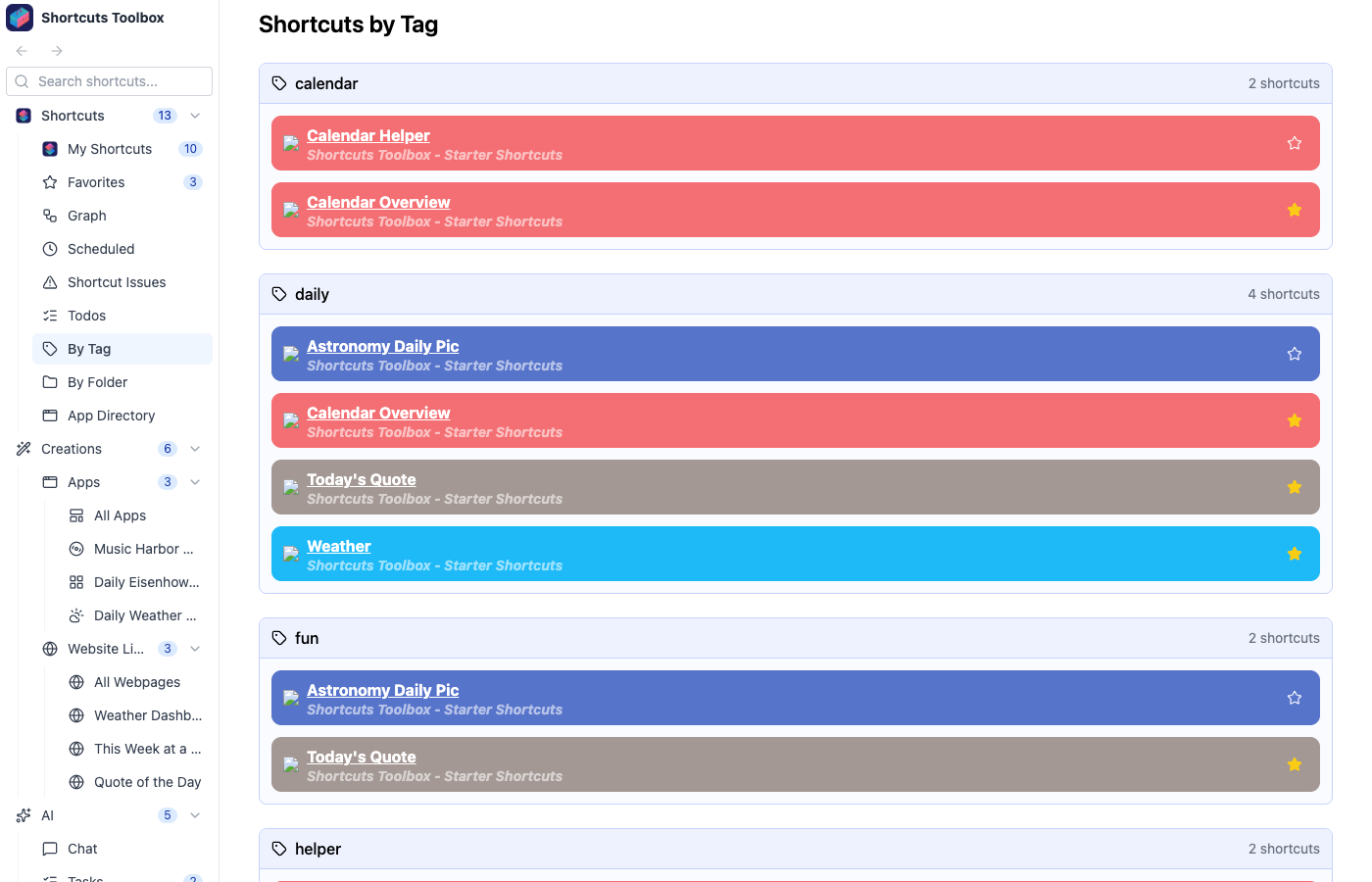
By Tag view
Browse the whole library grouped by tag, so every shortcut sits under the labels you gave it.
By Folder view
Prefer Apple’s structure? The By Folder view groups shortcuts by their folder — including ones with no folder — in their natural Shortcuts-app order.
Favorites: your daily drivers, up front
A handful of shortcuts do most of your real work — the morning routine, the report generator, the one you run a dozen times a day. Star them as favorites and they’re pulled to the front, so you’re not scrolling the whole library every time. Toggle a star wherever a shortcut appears, then open the dedicated Favorites view to see only the ones that matter.
One-click star
Toggle a favorite right from any shortcut row or detail view — no menus, no dialogs.
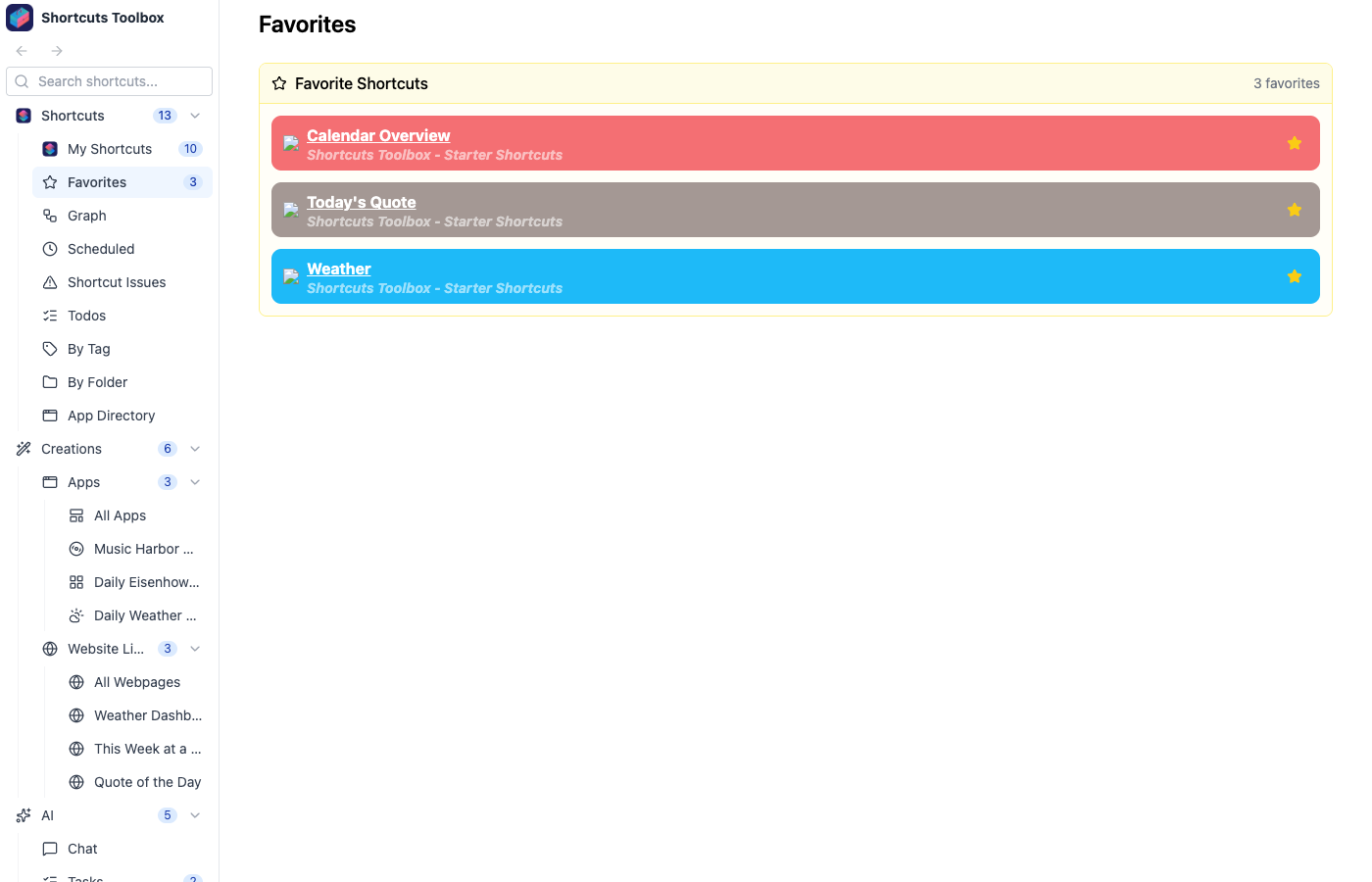
Dedicated Favorites view
Jump straight to the shortcuts you use every day, filtered down from everything else.
Synced server-side
Favorites are stored on the server, not buried in local state — so the same starred set shows up everywhere you connect.
Tags and favorites organize which shortcuts you see. To change how the metadata table is displayed — columns, sorting, and filters — save a Saved View. To pivot by the apps a shortcut depends on, see the App Directory; to jump to anything by name, try Global Search.